
How to Clear a Stuck Printer Queue Without Creating More Errors
Learn how to clear a stuck printer queue, cancel blocked print jobs, and check the print spooler before reinstalling printer software.
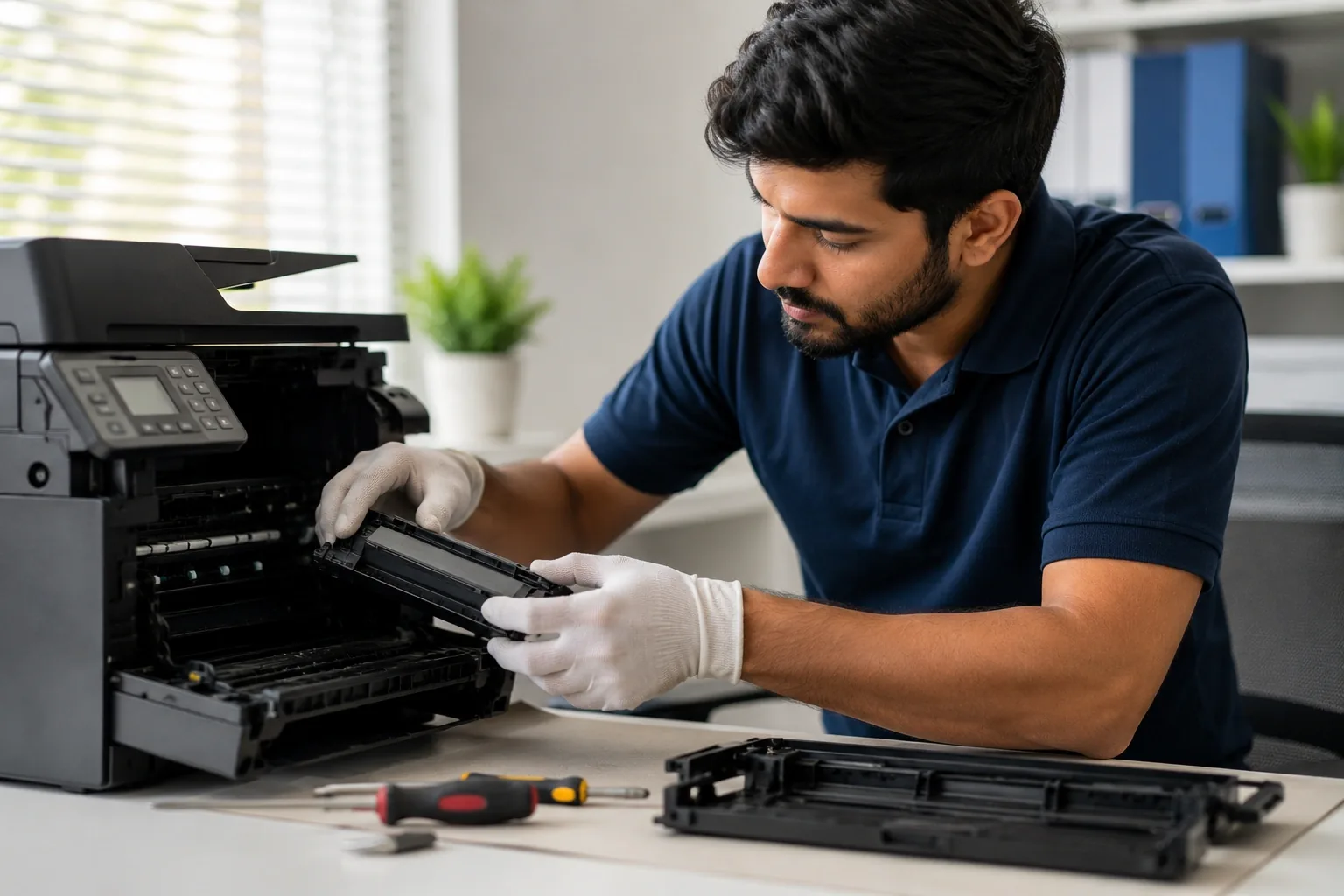
A stuck print queue can make every new document wait behind a job that never completes. The printer may be powered on and connected, yet nothing else prints. Start by identifying the blocked job and use the least disruptive queue controls before changing system services.
Common signs of clear stuck printer queue
- A document stays at Printing or Deleting.
- New jobs wait behind an older document.
- The queue shows several copies of the same file.
- The printer works again after a restart, then becomes stuck later.
Before changing settings
A queue problem can be local to one computer or shared by several users. If only one workstation is affected, focus on its queue. If every workstation is blocked, investigate the shared printer or print server.
Write down the exact error message and printer model. If the printer is shared at work, check whether another person is using it before clearing queues or changing network settings. Avoid opening electrical or hot internal components, and use the manufacturer instructions for model-specific maintenance.
Step-by-step troubleshooting
1. Open the correct queue
Open your operating system's printer settings and select the physical printer. Check that the queue belongs to the device you are troubleshooting, especially if duplicate printer entries exist.
2. Pause sending new jobs
Ask other users or applications to stop sending jobs temporarily. This prevents the queue from filling again while you clear the blocked document.
3. Cancel the problem document
Use Cancel or Delete for the stuck job and wait for the queue to refresh. If it remains visible, close and reopen the queue before trying again.
4. Restart the printer and computer
Power the printer off normally, wait briefly, then turn it back on. Restart the computer if the queue still does not update.
5. Check the Windows Print Spooler if needed
On Windows, the Print Spooler manages print jobs. If it repeatedly stops, investigate recent driver or system changes and use Windows service controls carefully. Do not delete unfamiliar system files or change permissions casually.
When to stop and ask for help
Stop troubleshooting if you see smoke, a burning smell, liquid damage, exposed wiring, repeated mechanical grinding, or an error that the manufacturer identifies as requiring service. Do not bypass safety interlocks or dismantle power components. For a network or driver problem, note the exact model, operating system, connection type, and steps already attempted so the next support session can start with useful information.
Frequently asked questions
Why will a print job not delete?
The spooler may still be processing the job, the printer connection may be lost, or the queue service may be unresponsive.
Can I clear the queue while other people are printing?
Coordinate first. Clearing a shared queue can cancel other users' documents.
Related printer support resources
This guide provides general troubleshooting information. Exact menu names and procedures vary by printer model, operating system, and software version. Always follow the instructions for your device.