
How to Fix a Printer Paper Jam Without Damaging the Printer
Learn safe printer paper jam troubleshooting, including power-down precautions, paper path inspection, rollers, and recurring jam causes.
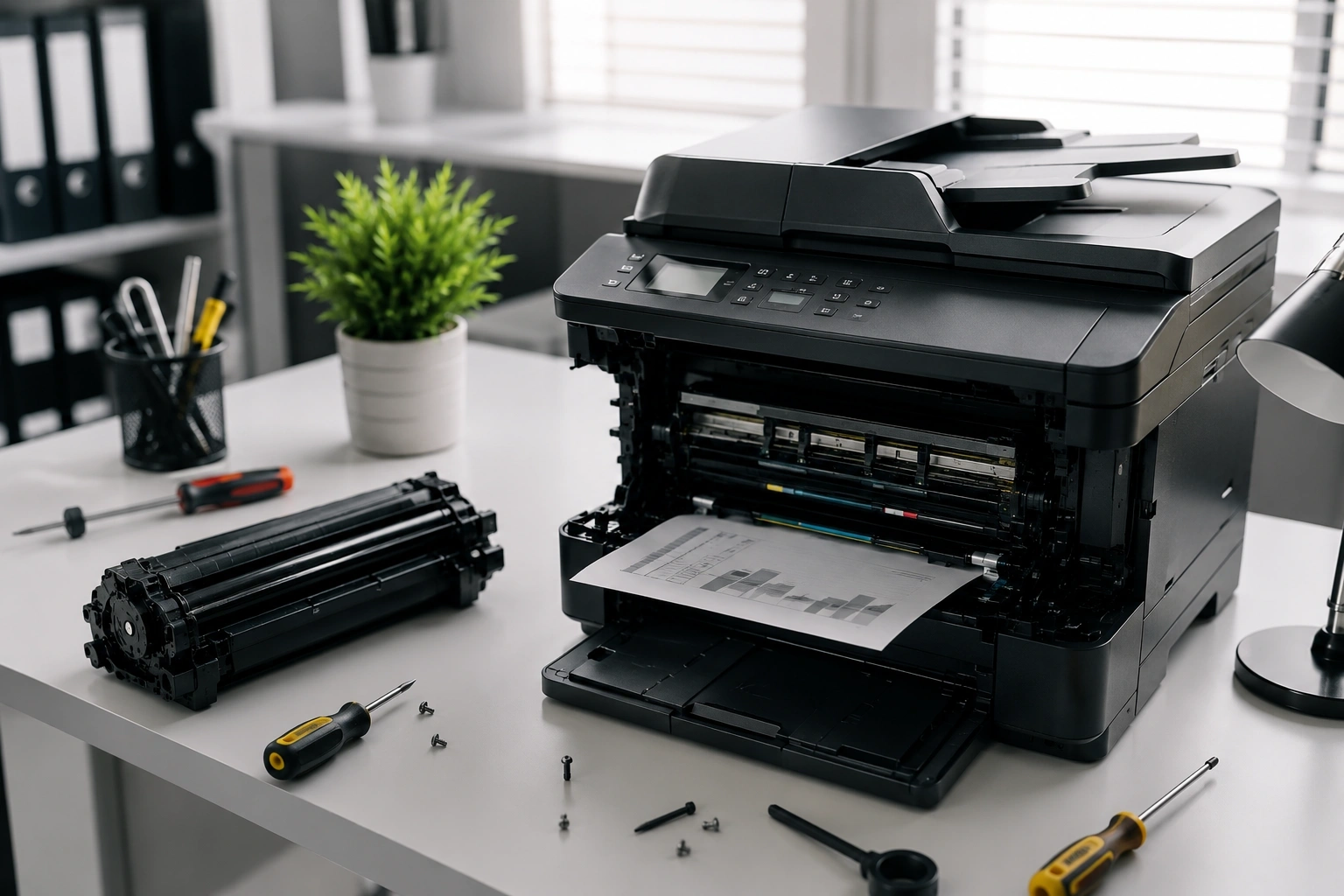
A paper jam can occur in the input tray, duplex path, rear access, or output area. Pulling paper in the wrong direction or using sharp tools can damage rollers and sensors. Follow the access instructions for your exact model.
Common signs of how to fix printer paper jam
- The printer reports a jam when no paper is visible.
- A sheet is partly fed or torn inside the printer.
- Paper repeatedly jams from the same tray.
- The printer makes unusual feeding sounds.
Before changing settings
A jam message may remain after the visible sheet is removed because a small scrap is still present or a door is not fully closed. Use the manual's access points rather than forcing a roller or sensor.
Write down the exact error message and printer model. If the printer is shared at work, check whether another person is using it before clearing queues or changing network settings. Avoid opening electrical or hot internal components, and use the manufacturer instructions for model-specific maintenance.
Step-by-step troubleshooting
1. Read the displayed jam location
The control panel may identify a tray or paper path. Use the model's manual to locate the correct access door before removing anything.
2. Power down as instructed
Turn the printer off and unplug it if the manufacturer directs you to do so. Laser printers can contain hot components; allow them to cool before accessing internal areas.
3. Remove visible paper carefully
Use both hands where possible and pull slowly in the direction of the paper path indicated by the manufacturer. Check for small torn scraps without forcing components.
4. Inspect paper loading
Fan and align the paper as recommended, keep guides snug but not tight, and do not exceed the tray's fill mark. Use supported paper size and weight.
5. Check for repeat jams
If jams continue in one location, rollers, sensors, duplex mechanisms, or unsuitable media may be involved. Stop if access requires dismantling the printer.
When to stop and ask for help
Stop troubleshooting if you see smoke, a burning smell, liquid damage, exposed wiring, repeated mechanical grinding, or an error that the manufacturer identifies as requiring service. Do not bypass safety interlocks or dismantle power components. For a network or driver problem, note the exact model, operating system, connection type, and steps already attempted so the next support session can start with useful information.
Frequently asked questions
Can I use tweezers to remove jammed paper?
Avoid inserting sharp tools into the paper path. Use only the access method and tools described by the manufacturer.
Why does the printer say paper jam when there is no paper?
A small torn fragment, sensor obstruction, or feed mechanism issue may remain. Follow the model-specific inspection instructions.
Related printer support resources
This guide provides general troubleshooting information. Exact menu names and procedures vary by printer model, operating system, and software version. Always follow the instructions for your device.