
Computer Cannot Detect the Printer? USB and Wi-Fi Checks
Fix a printer not detected by a computer with safe USB, Wi-Fi, device discovery, and driver checks for home and office setups.
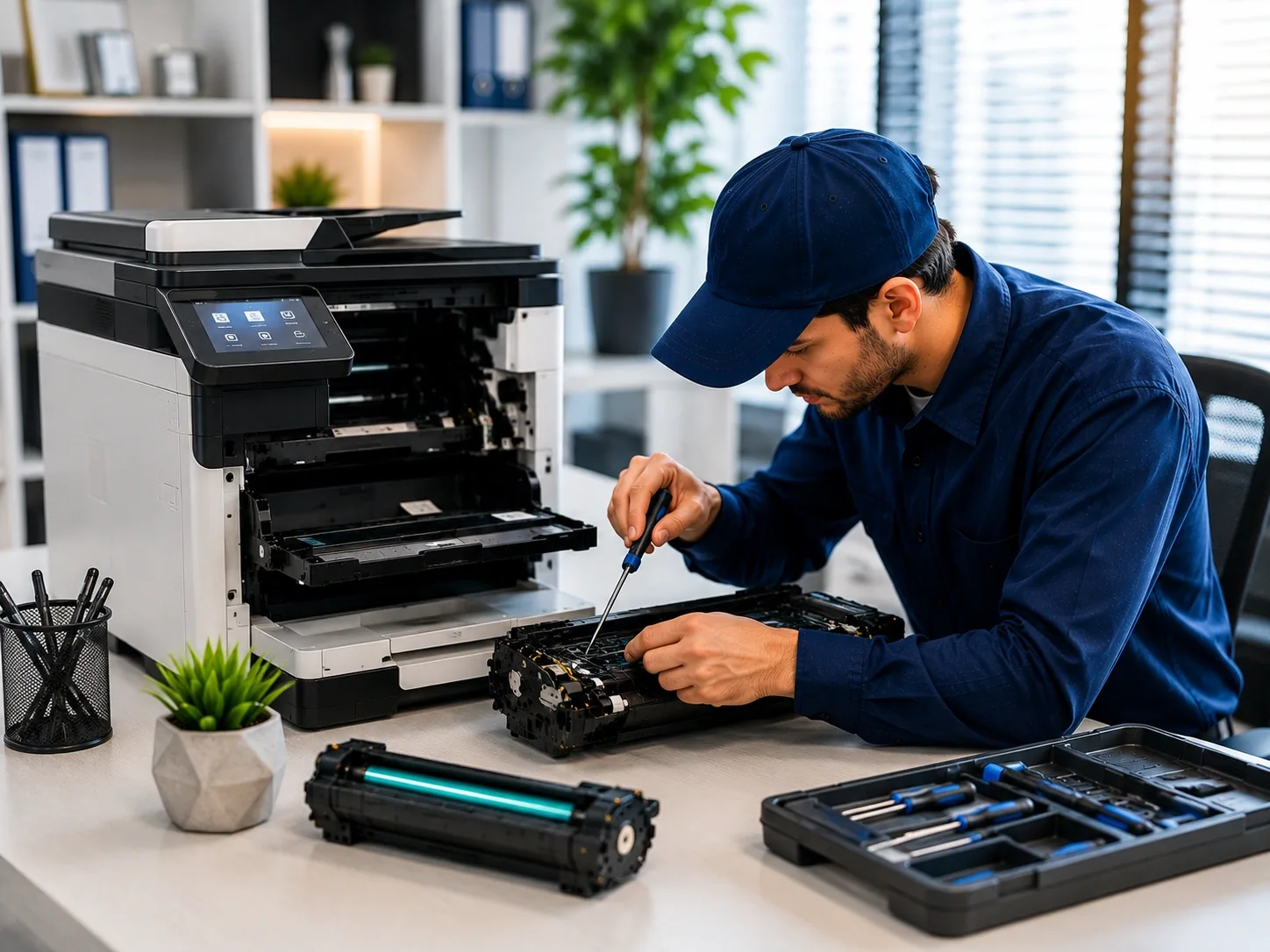
When a computer cannot detect a printer, first determine whether the printer is missing from the device list or appears but cannot communicate. These are different problems. A cable, network, discovery setting, or printer software entry may be responsible.
Common signs of printer not detected by computer
- The printer does not appear when adding a device.
- The computer displays an unknown USB device.
- The printer appears by name but shows unavailable.
- One computer can find the printer while another cannot.
Before changing settings
Discovery and printing are separate stages. A device can be discoverable but fail to accept jobs, or it can be reachable by network address while automatic discovery does not list it.
Write down the exact error message and printer model. If the printer is shared at work, check whether another person is using it before clearing queues or changing network settings. Avoid opening electrical or hot internal components, and use the manufacturer instructions for model-specific maintenance.
Step-by-step troubleshooting
1. Check the printer itself
Confirm it is powered on, ready, and not displaying a setup or connection warning. Print a built-in status page if the model offers one.
2. For USB, simplify the connection
Reconnect the cable at both ends and try a direct computer port rather than a hub. If available, test a known-good cable and another port.
3. For Wi-Fi, confirm network membership
Check the printer's network status and the computer's Wi-Fi network. Guest networks, client isolation, VPN settings, and separate VLANs can prevent device discovery.
4. Add the printer using the supported method
Use the operating system's add-printer workflow or the manufacturer's official setup application. Avoid downloading driver packages from third-party driver sites.
5. Remove stale duplicate entries only after checking
Old printer entries can point to an address or port that is no longer valid. Record the model and current connection details before removing an obsolete entry.
When to stop and ask for help
Stop troubleshooting if you see smoke, a burning smell, liquid damage, exposed wiring, repeated mechanical grinding, or an error that the manufacturer identifies as requiring service. Do not bypass safety interlocks or dismantle power components. For a network or driver problem, note the exact model, operating system, connection type, and steps already attempted so the next support session can start with useful information.
Frequently asked questions
Why can my phone find the printer but my laptop cannot?
The devices may use different networks, permissions, discovery methods, or printer software.
Does a printer need to be on the same Wi-Fi?
Usually the devices must be able to communicate on the same local network; some managed networks intentionally restrict that communication.
Related printer support resources
This guide provides general troubleshooting information. Exact menu names and procedures vary by printer model, operating system, and software version. Always follow the instructions for your device.