
Printer Printing Faded Text or Images? Improve Print Quality
Diagnose faded printer output with toner and ink checks, print-quality settings, paper selection, and safe maintenance steps.
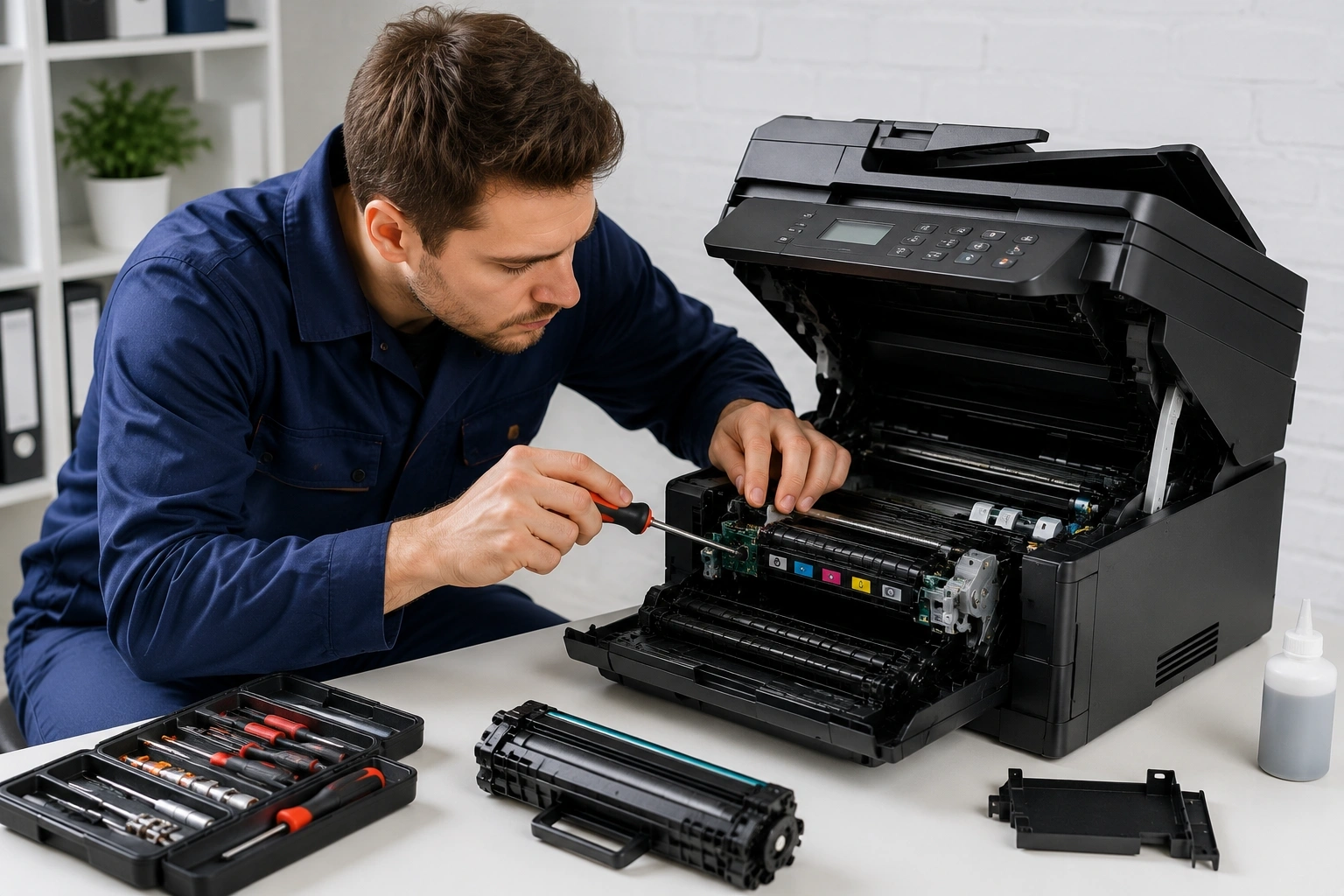
Faded output can look like pale text, uneven density, missing sections, or colors that appear washed out. Before replacing parts, determine whether the problem affects every page, one color, or only a particular application.
Common signs of printer printing faded text
- Text is lighter than usual across the page.
- One color is missing or weak.
- Print quality is poor on one paper type only.
- The problem appeared after changing supplies or settings.
Before changing settings
If a diagnostic page looks normal but one application prints faintly, the problem may be in the document or print dialog. If the diagnostic page is also faded, focus on supplies and printer maintenance.
Write down the exact error message and printer model. If the printer is shared at work, check whether another person is using it before clearing queues or changing network settings. Avoid opening electrical or hot internal components, and use the manufacturer instructions for model-specific maintenance.
Step-by-step troubleshooting
1. Print a quality diagnostic page
Use the printer's built-in quality or nozzle test where available. This helps distinguish a printer-side issue from a document or application issue.
2. Check supply levels and installation
Review toner or ink status and confirm that supplies are seated correctly. Use supplies compatible with the exact printer model.
3. Review paper and quality settings
Confirm the selected paper type and print-quality mode match the paper loaded. Draft or toner-save settings can intentionally reduce density.
4. Use the correct maintenance routine
Inkjet models may offer nozzle checks and cleaning; laser models may provide manufacturer-specific calibration or cleaning guidance. Do not open hot or high-voltage printer areas.
5. Compare another file
Print a simple test document from another application. If only one file is faded, inspect its color, transparency, and print settings.
When to stop and ask for help
Stop troubleshooting if you see smoke, a burning smell, liquid damage, exposed wiring, repeated mechanical grinding, or an error that the manufacturer identifies as requiring service. Do not bypass safety interlocks or dismantle power components. For a network or driver problem, note the exact model, operating system, connection type, and steps already attempted so the next support session can start with useful information.
Frequently asked questions
Can draft mode make text look faded?
Yes. Draft or economy modes can reduce ink or toner use and may produce lighter output.
Should I shake a toner cartridge?
Only follow the exact manufacturer's instructions for that cartridge. Some modern cartridges should not be handled or shaken in the way older guidance suggests.
Related printer support resources
This guide provides general troubleshooting information. Exact menu names and procedures vary by printer model, operating system, and software version. Always follow the instructions for your device.