
USB Printer Not Recognized by Windows? Cable and Port Checks
Fix a USB printer not recognized by Windows with cable, port, power, device manager, and official driver troubleshooting.
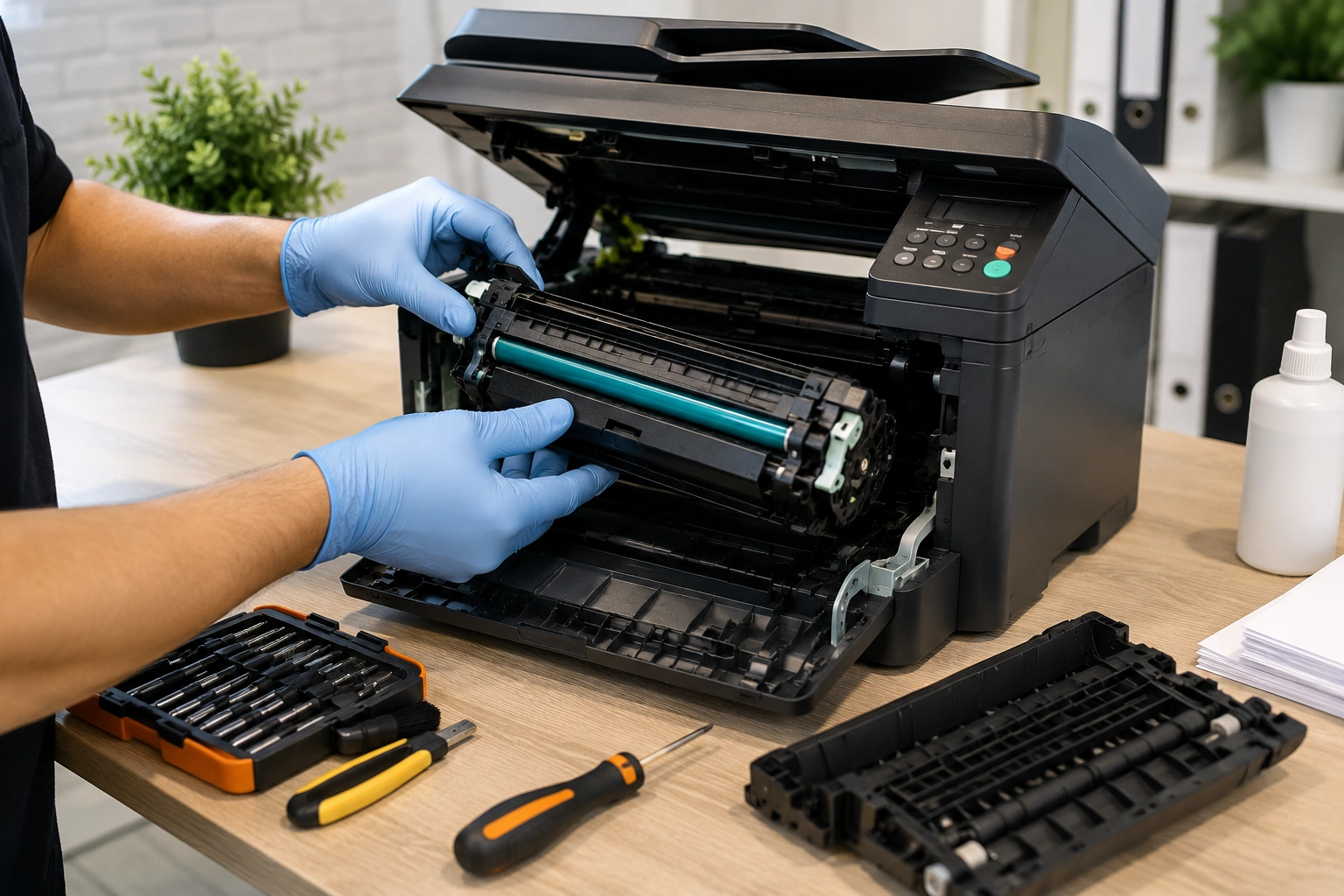
A USB printer that is not recognized may have a cable or port problem, a device detection issue, or missing software. Keep the test simple: check power, connect directly, and change one variable at a time.
Common signs of USB printer not recognized Windows
- Windows makes no connection sound when the printer is plugged in.
- An unknown USB device appears.
- The printer is listed but cannot print.
- The connection works intermittently when the cable moves.
Before changing settings
If Windows repeatedly connects and disconnects the printer, stop moving the cable while a job is active. A stable direct connection is needed before reinstalling software.
Write down the exact error message and printer model. If the printer is shared at work, check whether another person is using it before clearing queues or changing network settings. Avoid opening electrical or hot internal components, and use the manufacturer instructions for model-specific maintenance.
Step-by-step troubleshooting
1. Check printer power and readiness
Turn the printer on and wait until it finishes starting. A sleeping or error state can complicate detection.
2. Reconnect the USB cable
Disconnect and reconnect both ends. Use a direct computer port rather than a docking station or hub for the initial test.
3. Try another port or known-good cable
Test one alternative at a time. Avoid very long or damaged cables.
4. Check Windows device detection
Use Device Manager to see whether the computer detects an unknown or problem device. Note the displayed error before making changes.
5. Install the correct model software
Download supported drivers from the manufacturer's official support page and follow its USB connection instructions.
When to stop and ask for help
Stop troubleshooting if you see smoke, a burning smell, liquid damage, exposed wiring, repeated mechanical grinding, or an error that the manufacturer identifies as requiring service. Do not bypass safety interlocks or dismantle power components. For a network or driver problem, note the exact model, operating system, connection type, and steps already attempted so the next support session can start with useful information.
Frequently asked questions
Can a USB cable charge but not transfer printer data?
Yes. A cable can be physically damaged or unsuitable for reliable data communication.
Should I plug the USB cable in before installing the driver?
Follow the exact manufacturer's installation instructions; some installers ask you to connect only when prompted.
Related printer support resources
This guide provides general troubleshooting information. Exact menu names and procedures vary by printer model, operating system, and software version. Always follow the instructions for your device.